
Upload a FIT file.
Get AI coaching feedback on any ride by manually uploading your .fit activity file. This is the only way to get coaching feedback on Garmin rides.
FIT (Flexible and Interoperable Data Transfer) files are the standard format used by Garmin, Wahoo, Hammerhead, and other cycling computers to store ride data including power, heart rate, cadence, GPS route, and more.
Export from your device, transfer to your phone, and upload in seconds.
Export your FIT file
Export the .fit file from your device or companion app.
— Garmin Connect App
Open the Garmin Connect app → find the activity → tap ⋯ → Export to Phone.
— Garmin Connect Web
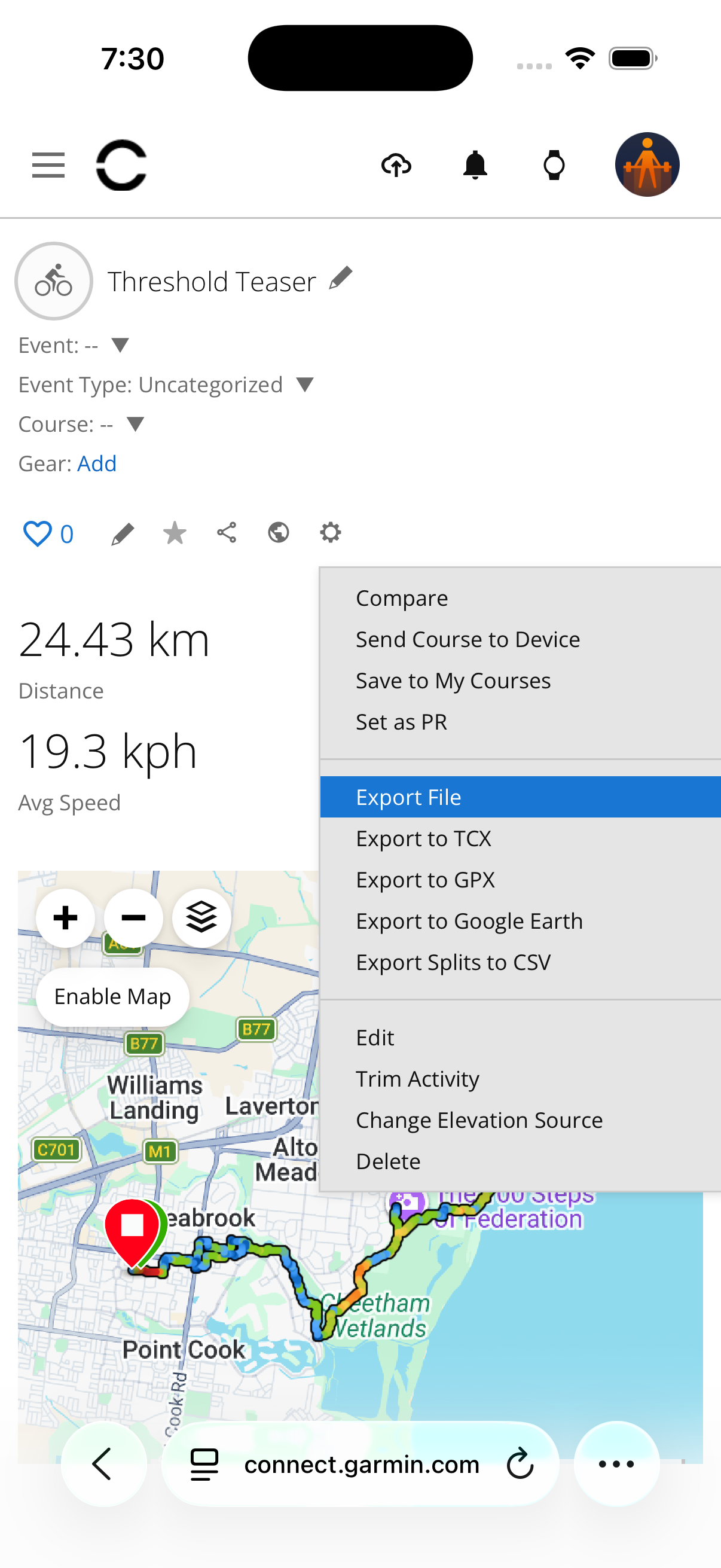
Go to connect.garmin.com → open the activity → click the gear icon → Export File.
— Wahoo ELEMNT App
Open the Wahoo ELEMNT app → find the activity → Share → Export .fit.
— Other devices
Connect your device via USB and find the .fit file in the Garmin/Activities (or similar) folder.
Upload to WattsUp
Download your FIT file to your phone
Download the .fit file from the Garmin Connect website (connect.garmin.com). Open the activity, click the gear icon, and select Export File to save the .fit file to your phone.
Open WattsUp
Open the WattsUp app and navigate to the Calendar tab.
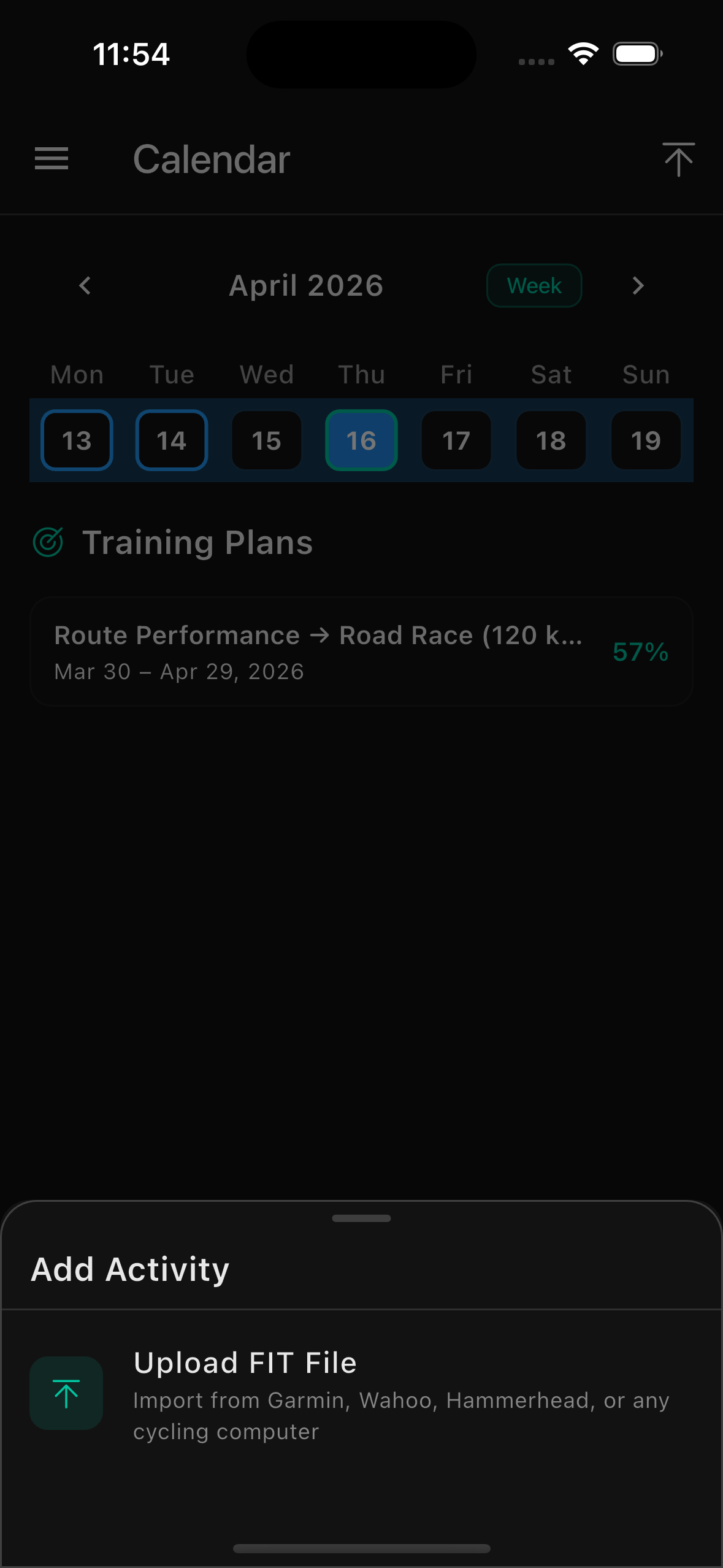
Tap Upload
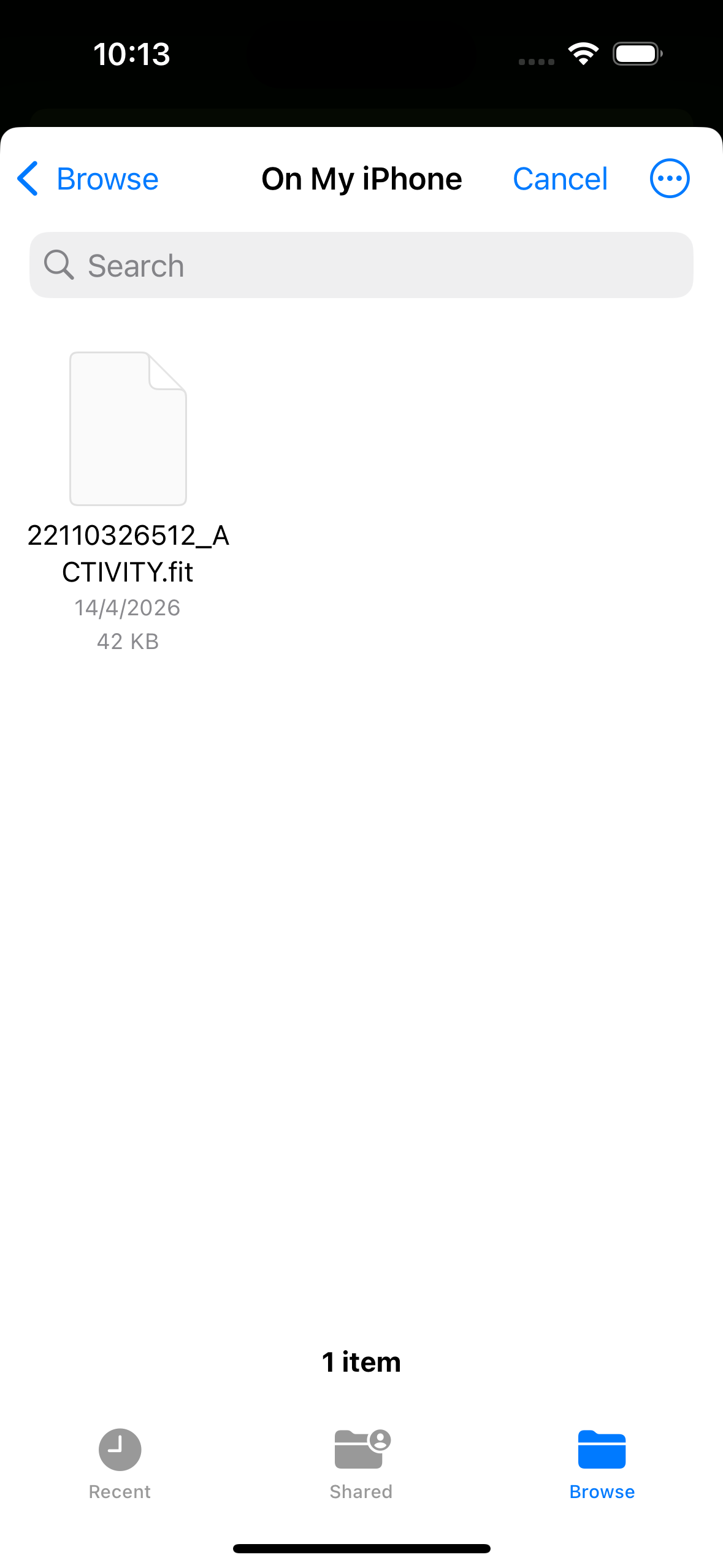
Tap the upload button and select your .fit file from your device storage.
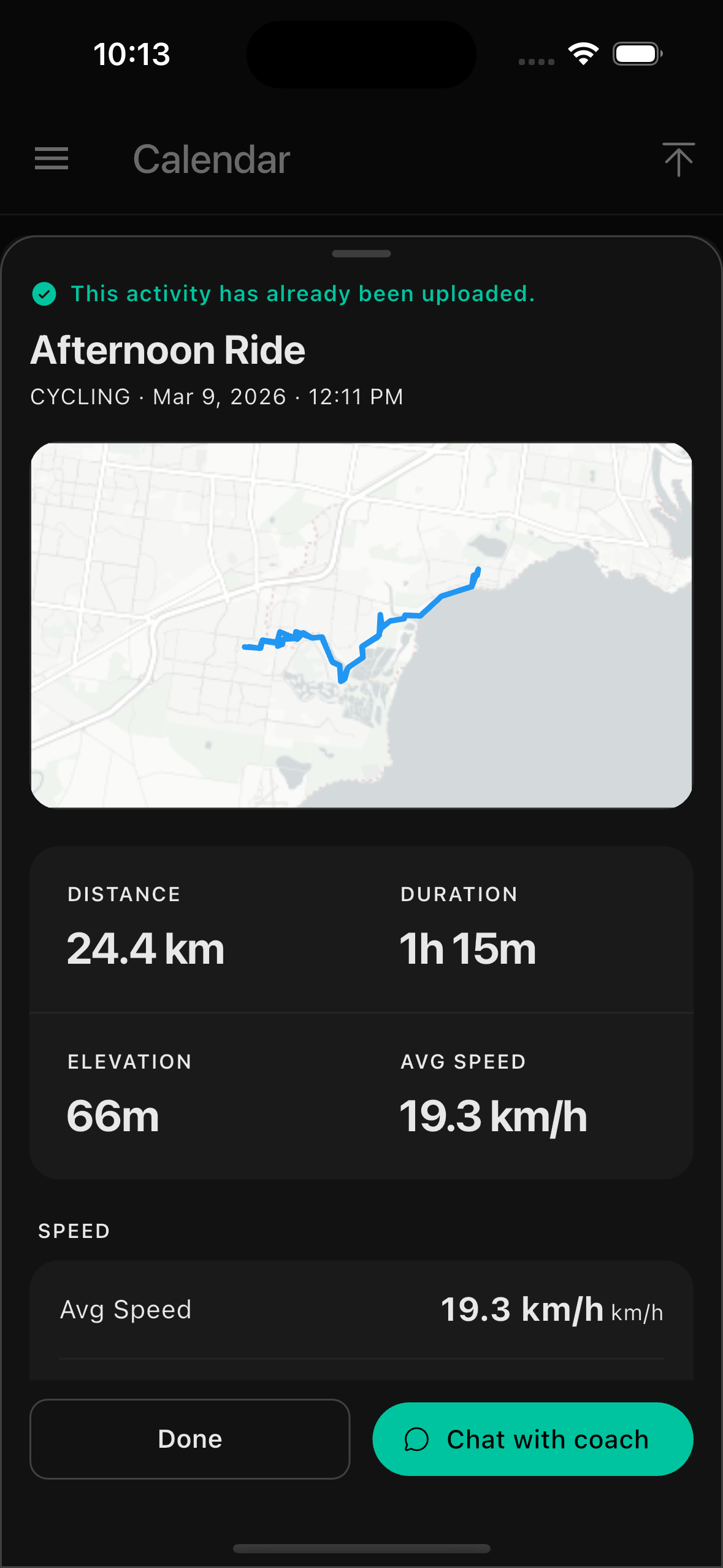
Activity imported
Your activity will be processed and added to your history. Your AI coach can now provide personalised feedback on this ride.
Three tips
Any .fit file from any supported cycling computer will work, not just Garmin.
This is the only way to get AI coaching feedback on activities from a Garmin device.
You can upload multiple past activities to build up your coaching history.
Write to us.
Real humans in Melbourne. Replies within 24 hours, even on weekends.
Contact support