
Redeem a promo code.
Got a promo code? Redeem it in under a minute from the Upgrade Plan screen to unlock discounted access.
Promo codes are applied at the point of upgrade. They're not retroactive, so make sure you enter yours before tapping the subscribe button. The code unlocks a discount that's applied to your first billing period.
Four taps and you're done.
How to redeem
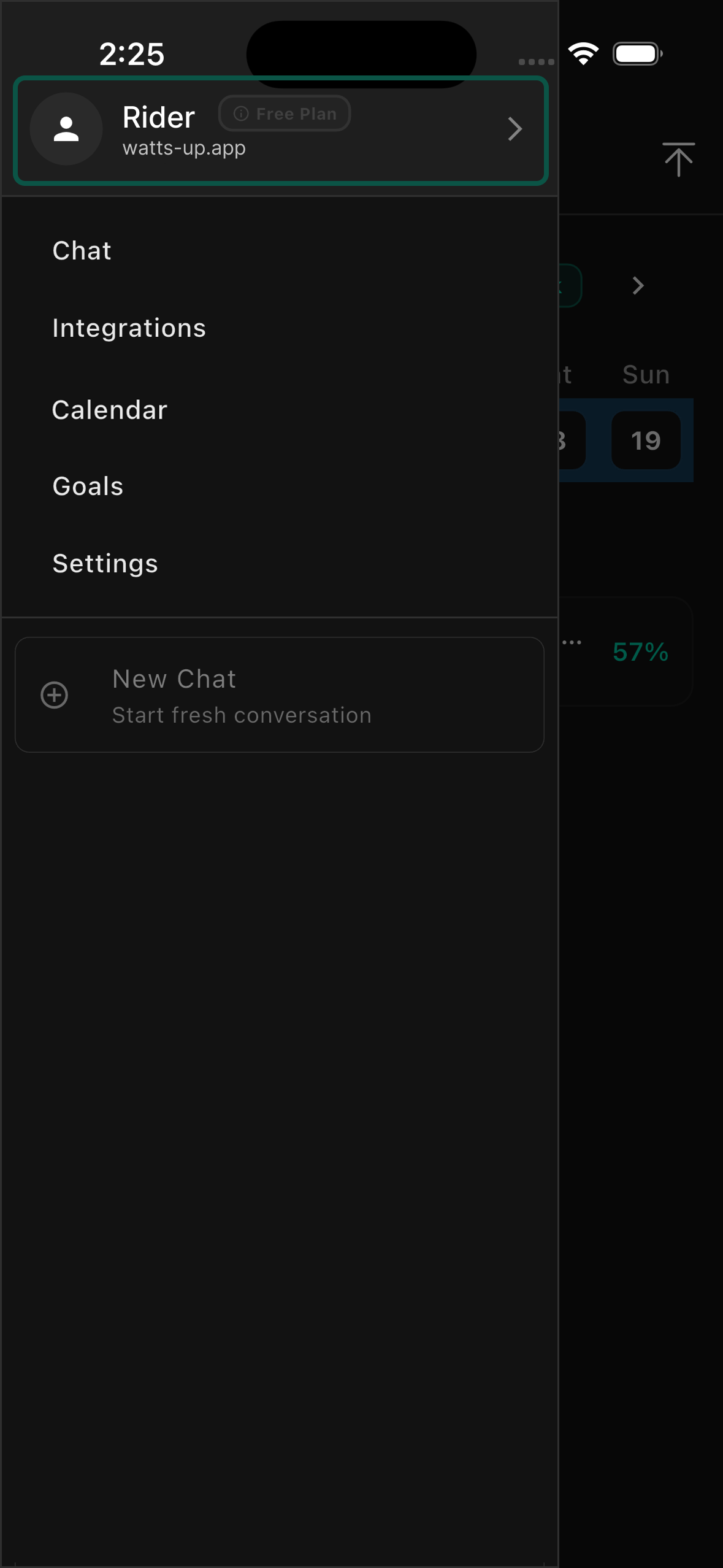
Go to your Profile
Open the WattsUp app and navigate to your Profile page from the side menu.
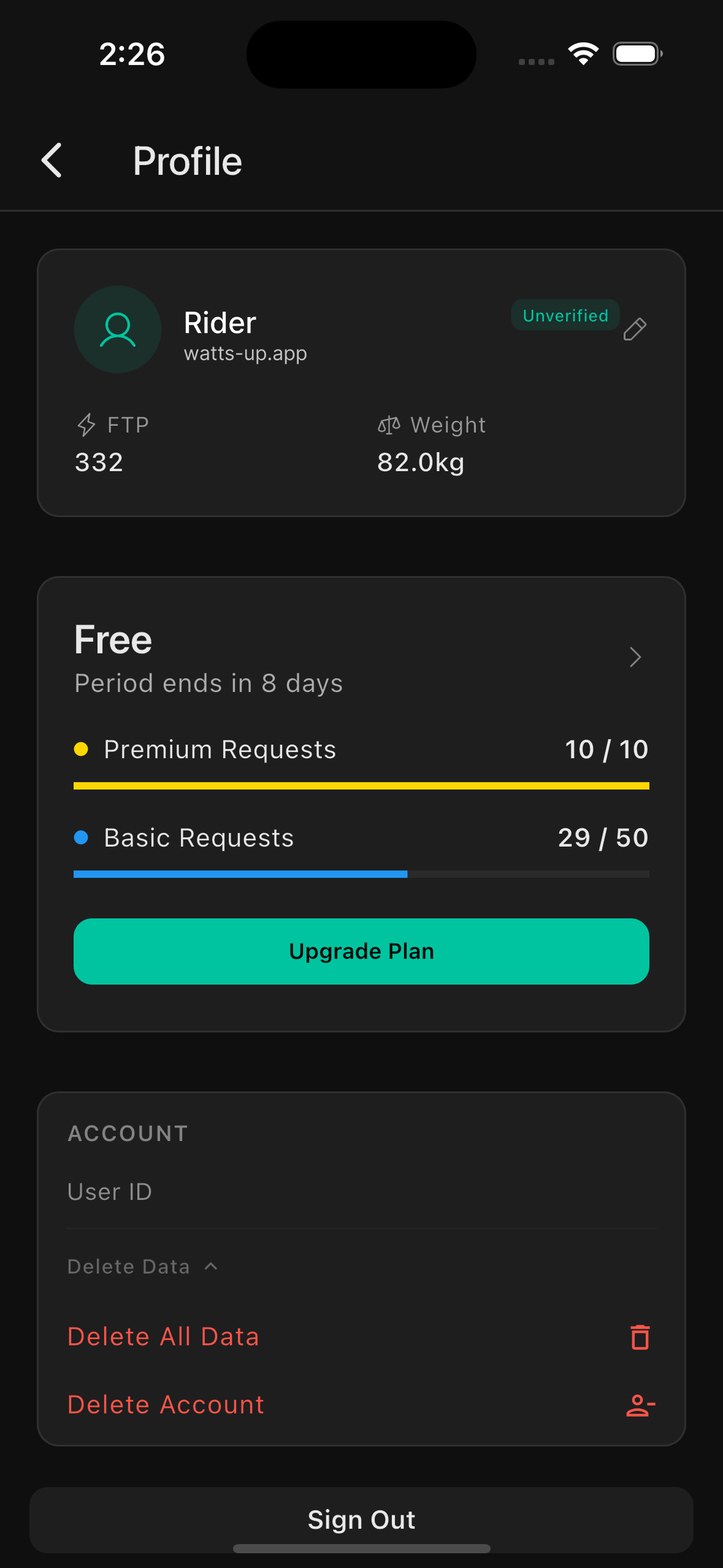
Press Upgrade Plan
Tap the 'Upgrade Plan' button to open the subscription options screen.
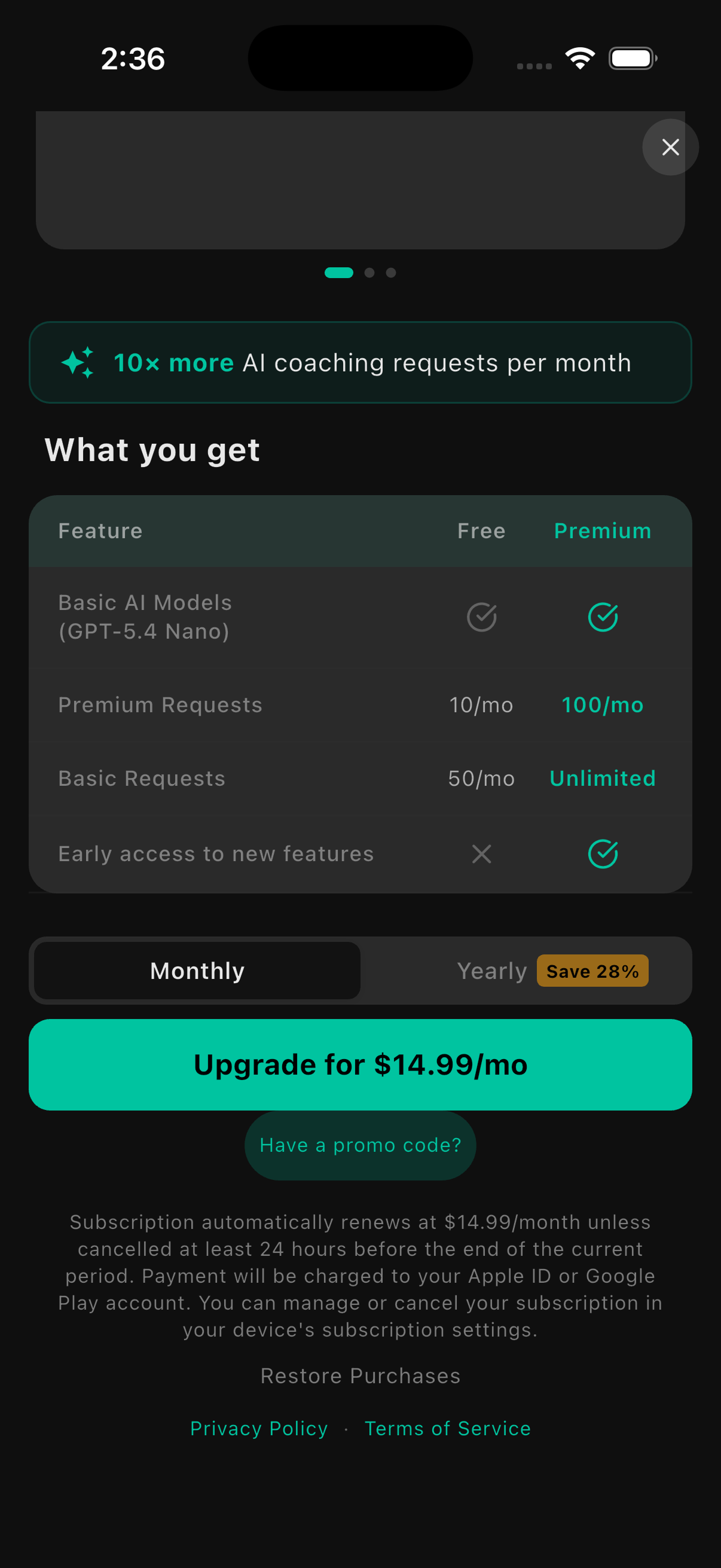
Tap 'Have a promo code?'
Scroll to the bottom of the Upgrade Plan screen and tap the 'Have a promo code?' button.
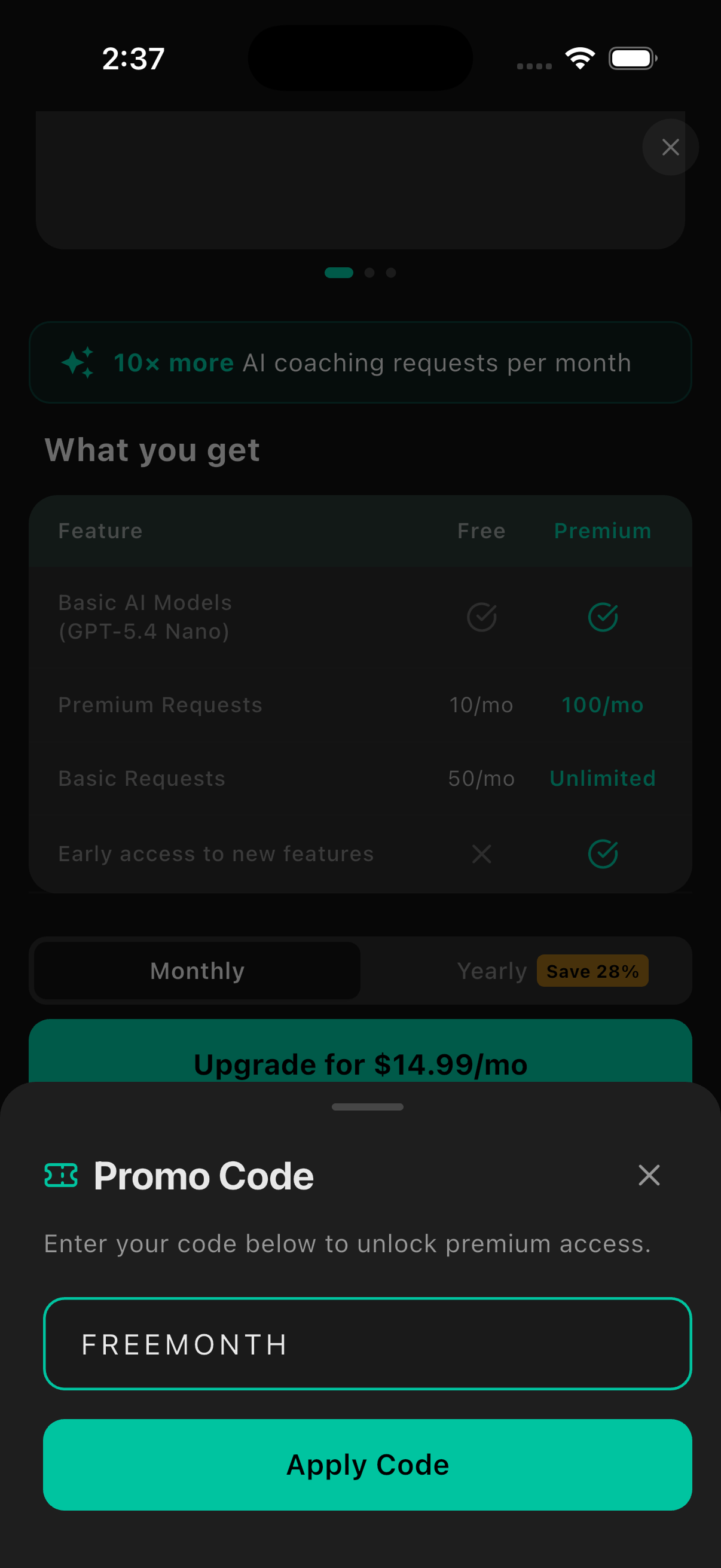
Enter your code and press Apply Code
Type your promo code into the field and tap 'Apply Code'. The discount will be reflected immediately before you complete the purchase.
Good to know
Promo codes must be entered before completing your purchase. They cannot be applied to an existing active subscription.
Each promo code can only be used once per account.
If your code isn't being accepted, double-check for typos or contact us at jerry@watts-up.app.
Discounts apply to the first billing period only, unless stated otherwise on the code.
Write to us.
Real humans in Melbourne. Replies within 24 hours, even on weekends.
Contact support